
MetaSweeper User Guide
MetaSweeper is an open-source Minesweeper application for Windows 10 and Windows 11.
This guide uses the original tutorial's 3.3.x interface and screenshots. Menus, options, and data directories may differ between versions. Chinese screenshots are collapsed below; contributions of English screenshots are welcome.
Download and Installation
Download and Run
Download the installer from the GitHub releases page, which also lists older versions. You can also visit the Gitee project page.
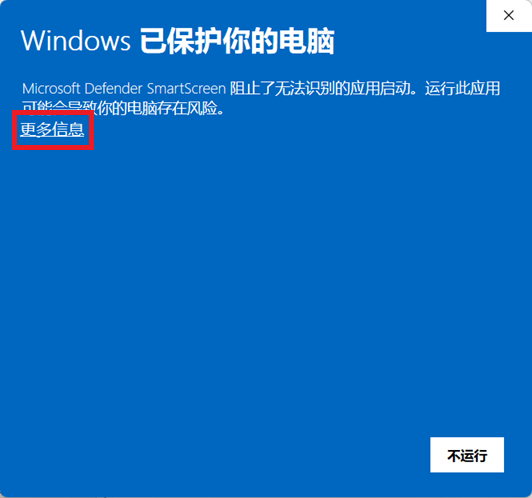
Double-click the installer. If Windows reports an unrecognized application, confirm that the file came from the project's releases page, then click More info (更多信息).
Chinese screenshot — please contribute an English version
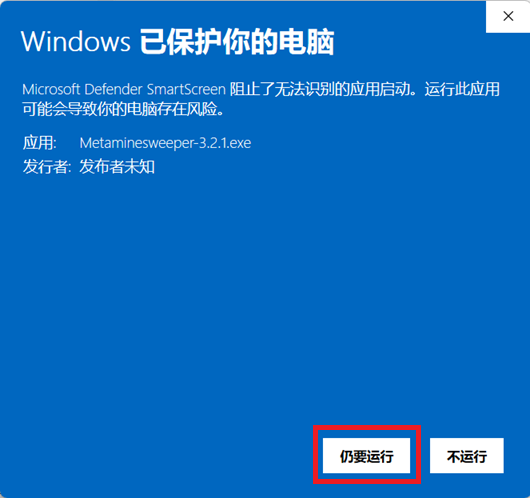
Click Run anyway (仍要运行).
Chinese screenshot — please contribute an English version
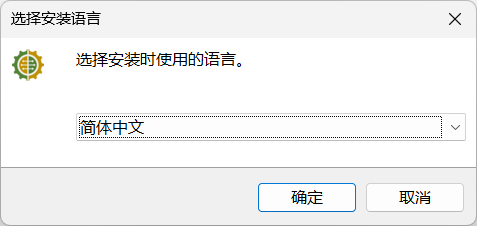
Choose the language for the installer.
Chinese screenshot — please contribute an English version
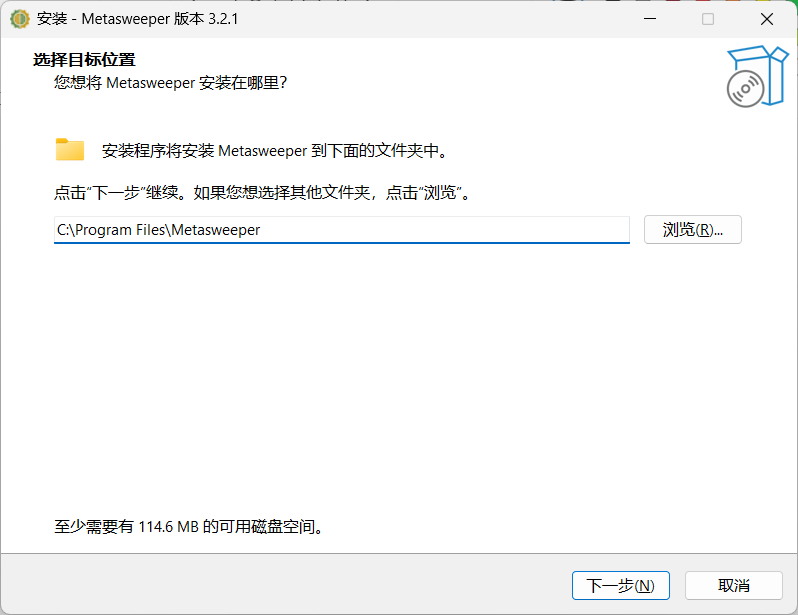
Choose an installation directory. If you have an older Metaminesweeper installation, use a different directory.
Chinese screenshot — please contribute an English version
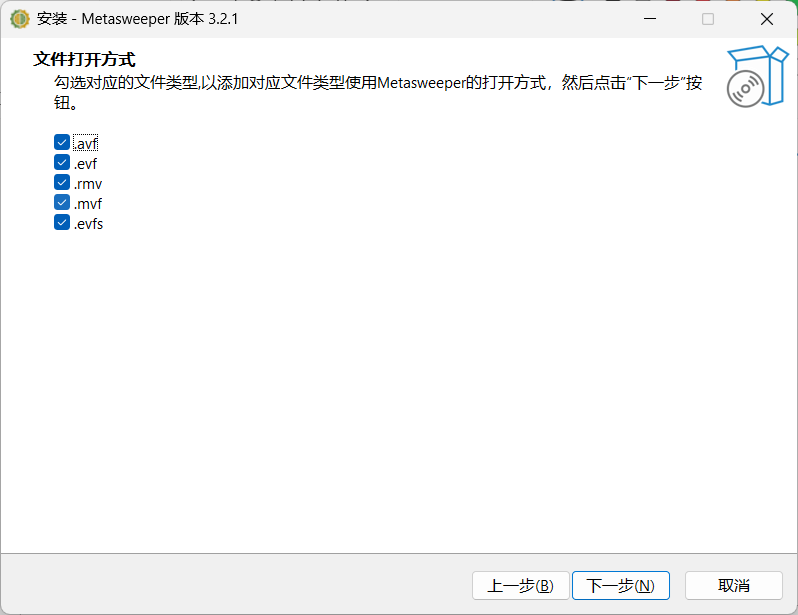
Choose the file associations. Selected file types will open in MetaSweeper by default.
Chinese screenshot — please contribute an English version
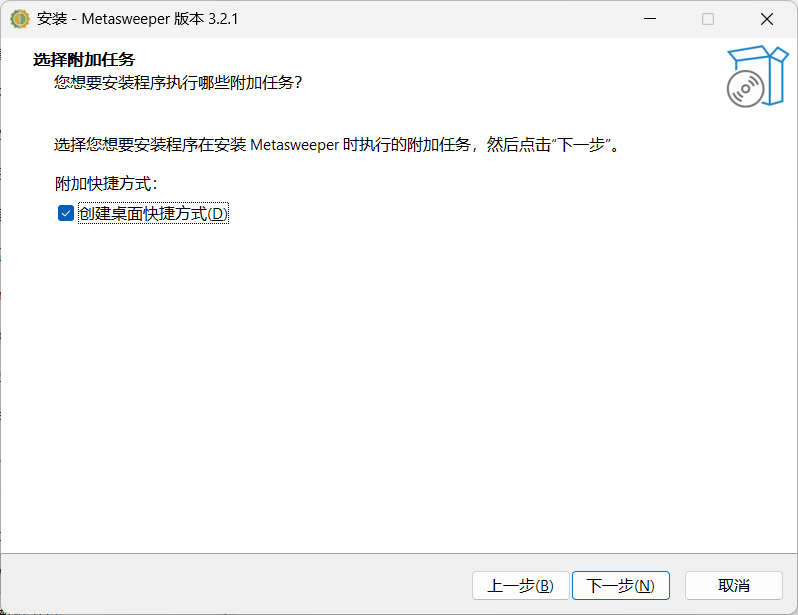
Choose whether to create a desktop shortcut.
Chinese screenshot — please contribute an English version
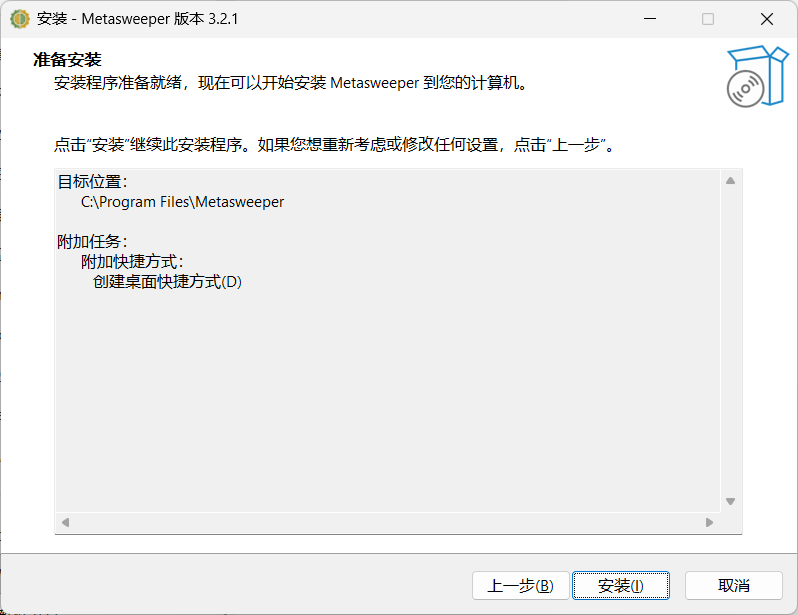
Review the options, then click Install.
Chinese screenshot — please contribute an English version
Click Finish when installation is complete.
Chinese screenshot — please contribute an English version
Migrating from an Older Version
To keep settings and replays from an older MetaMineSweeper installation, copy its replay directory and the files gameSetting.ini, record.ini, and scoreBoardSetting.ini. Paste them into the new version's data directory, replacing the corresponding files and directory.
In version 3.2.0 and earlier, these files and the directory are inside the installation directory, for example D:\SomePath\Metasweeper\.
Starting with version 3.2.1, the data location depends on whether the installation directory is writable:
| Installation directory | Data location |
|---|---|
| Writable, such as an ordinary directory on drive D, E, or F | The installation directory, for example D:\SomePath\Metasweeper\. |
| Not writable, such as a protected system directory | The user's application data directory, for example C:\Users\username\AppData\Roaming\MetaMineSweeper3.2.1\. The final directory name varies by version. |
If migration still fails, report the problem through GitHub Issues or Gitee Issues.
Game Settings
Open Settings → Game Settings (设置 → 游戏设置), or press S. Settings are saved in gameSetting.ini.
Chinese screenshot — please contribute an English version
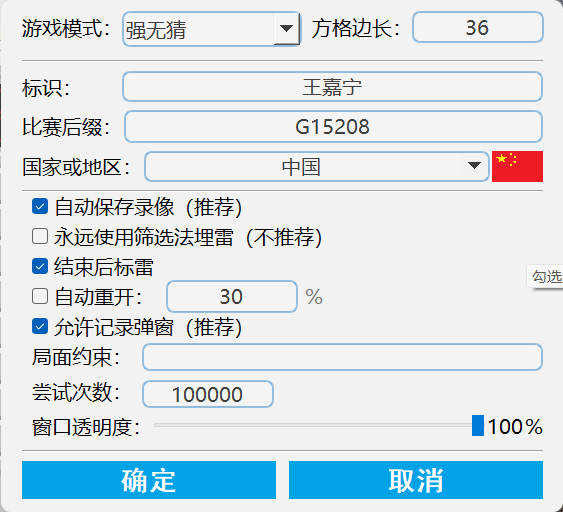
Basic Options
| Option | Meaning |
|---|---|
| Cell size (方格边长) | Measured in pixels, with a minimum of 5. |
| Player identifier (标识) | The player identity displayed below the board during replay playback, usually a name or nickname. |
| Tournament identifier (比赛标识) | A credential for tournament participation, usually supplied by the organizer when the tournament starts. It is not displayed as the public player identifier. |
| Personal or uniqueness identifier (个性标识 or 唯一性标识) | Additional information that distinguishes players with the same name, such as a nickname, Minesweeper.cn ID, province, email address, or motto. It is not displayed as the public player identifier. |
| Country or region (国家或地区) | Supports autocomplete. For example, entering 宁 in the Chinese interface offers 贝宁 (Benin). Selecting a country also sets its flag. |
| Flag mines after the game (结束后标雷) | Shows all mine locations when a game ends. Choose according to your preference. |
| Keep the cursor inside the border (光标不能超出边框) | Restricts the cursor to the border after a game starts. |
See Player Identifiers for managing player and tournament identifiers on Open Minesweeper.
Automatically Saving Replays
With Automatically save replays (自动保存录像) enabled, every winning game is saved in replay, regardless of mode or ranking eligibility. Losing games must be saved manually.
With Automatically save replay collections (自动保存录像集) enabled, .evfs collections are saved in replay, recording wins, losses, and restarts. Changing the country, player identifier, tournament identifier, or uniqueness identifier resets collection progress. Disable this option if you do not need statistics such as win rate or consecutive wins and want to save disk space.
Generating No-Guess Boards
With Always use filtering to place mines (永远使用筛选法埋雷) enabled, no-guess boards are always obtained by filtering candidate boards. At high mine densities, this can greatly increase generation time or exhaust computing resources.
Automatic Restart
Normally, hitting a mine requires an extra click to restart. Enable Automatic restart (自动重开) and set a completion percentage to start the next game automatically when you hit a mine before reaching that percentage.
Personal Record Notifications
With Allow record notifications (允许纪录弹窗) enabled, a dialog appears when you break a personal record. Records cover rtime, 3BV/s, STNB, IOE, path, and rqp on Beginner, Intermediate, and Expert in modes including Standard, Standard NF, Win7, Strong No-Guess, Weak No-Guess, Speed No-Guess, Quasi-No-Guess, Strong Guessable, and Weak Guessable, as well as personal best times in Standard mode.
Records are stored in record.ini. Editing its values changes when record notifications appear.
Board Constraints and Attempt Limit
Board constraints filter for particular boards for training. Replays generated with any board constraint are ineligible for rankings.
Constraints use Python expression syntax and must return a Boolean value.
Available variables: bbbv, op, isl, cell0, cell1, cell2, cell3, cell4, cell5, cell6, cell7, cell8.
Available functions: sin, cos, tan, log, len, abs, max, min, all, any, sum, divmod, pow, round, bool, float, int.
Valid examples:
bbbv < 120
(cell8 < cell7 or cell3 > 5) and cell0 == 14
sin(3.14 / 3) <= cell0 / cell1 - 2
cell2**2 == 25 * abs(1j * 1j)
all([cell8 > 1, cell7 > 2, cell6 > 3])
Attempt limit (尝试次数) sets the maximum number of mine-placement attempts used to satisfy the constraint.
Mine Placement
Without additional constraints, the mine-placement algorithm does not exclude extremely simple boards. Boards with 3BV = 1 are therefore possible.
Counters
The counter window has multiple rows and two columns. Each row contains an indicator: its name in the first column and its value in the second. Configuration is saved in scoreBoardSetting.ini.
Chinese screenshot — please contribute an English version
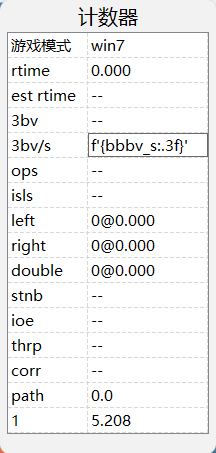
- Double-click the first column to edit an indicator's name. To delete a row, clear its name and click elsewhere.
- Double-click the second column to edit its formula.
- Move the pointer to the bottom of the counter window and click the + button to add a row.
Formulas use Python expression syntax and must return a string, integer, or floating-point number.
Available variables: time, row, column, minenum, left, right, double, cl, lce, rce, dce, left_s, right_s, double_s, cl_s, ce_s, path, flag, flag_s, rtime, etime, bbbv_solved, bbbv_s, bbbv, op, isl, zini, hzini, ioe, thrp, corr, ce, mode, pluck, is_official, is_fair, stnb, qg, rqp, max_block_len.
The available functions are the same as for board constraints. Formula examples:
f'{bbbv_solved}/{bbbv}'
f"ce/s is: {ce / time:.3}"
checksum_ok and is_fair
'Concatenating strings with addition: ' + f"{isl}"
Streaming Mode
Start the player identifier with [live] to enter streaming mode. For example, change Player to [live]Player. Enable this mode when streaming. Other than the identifier, its replays are the same as those produced in normal mode.
Lag Mode
If a slow computer frequently triggers anti-cheat restarts, start the player identifier with [lag], for example [lag]Player, to enter lag mode with more relaxed limits. Other than the identifier, its replays are the same as those produced in normal mode.
Study Mode
Press Ctrl+Space to capture a Minesweeper board; a board image can also be used. If optical board recognition succeeds, study mode opens and shows the probability that each unopened cell contains a mine.
Keyboard Shortcuts
| Shortcut or action | Function |
|---|---|
1, 2, 3, 4, 5, 6 | Switch to Beginner, Intermediate, Expert, and custom modes 4, 5, and 6, respectively. |
F1 | Open the plugin manager. |
F2, N | Start a new game. |
F3 | Replay the previous board as a game. |
B, I, E, C | Switch to Beginner, Intermediate, Expert, or Custom, respectively. |
R | Play back the previous game's replay. |
Ctrl+S | Save the current replay, or save the replay being played back as an .evf file. |
Ctrl+C | Before a game, after a win or loss, during replay playback, or in study mode, copy the current board as a numeric matrix or as emoji/ASCII-rendered .board data or a file. |
Ctrl+V | Before a game, after a win or loss, during replay playback, or in study mode, paste a board and enter study mode. |
Ctrl+Space | Enter study mode by capturing a board. |
Space | During a game, hold to show mine probabilities for unopened cells. During replay playback, press once to show them and again to hide them. |
/ | Show or hide the counter window. |
S | Game settings. |
Z | Shortcut settings. |
O | Open a replay or replay collection. |
A | About. |
M | Mouse settings. |
Hold Ctrl and scroll the mouse wheel before a game | Increase or decrease cell size. |
| Scroll over the mine count in the upper-left corner before a game | Quickly change the number of mines. |
| Scroll over the playback speed number during replay playback | Change playback speed. |
Ctrl+X | Quit. |